Logs
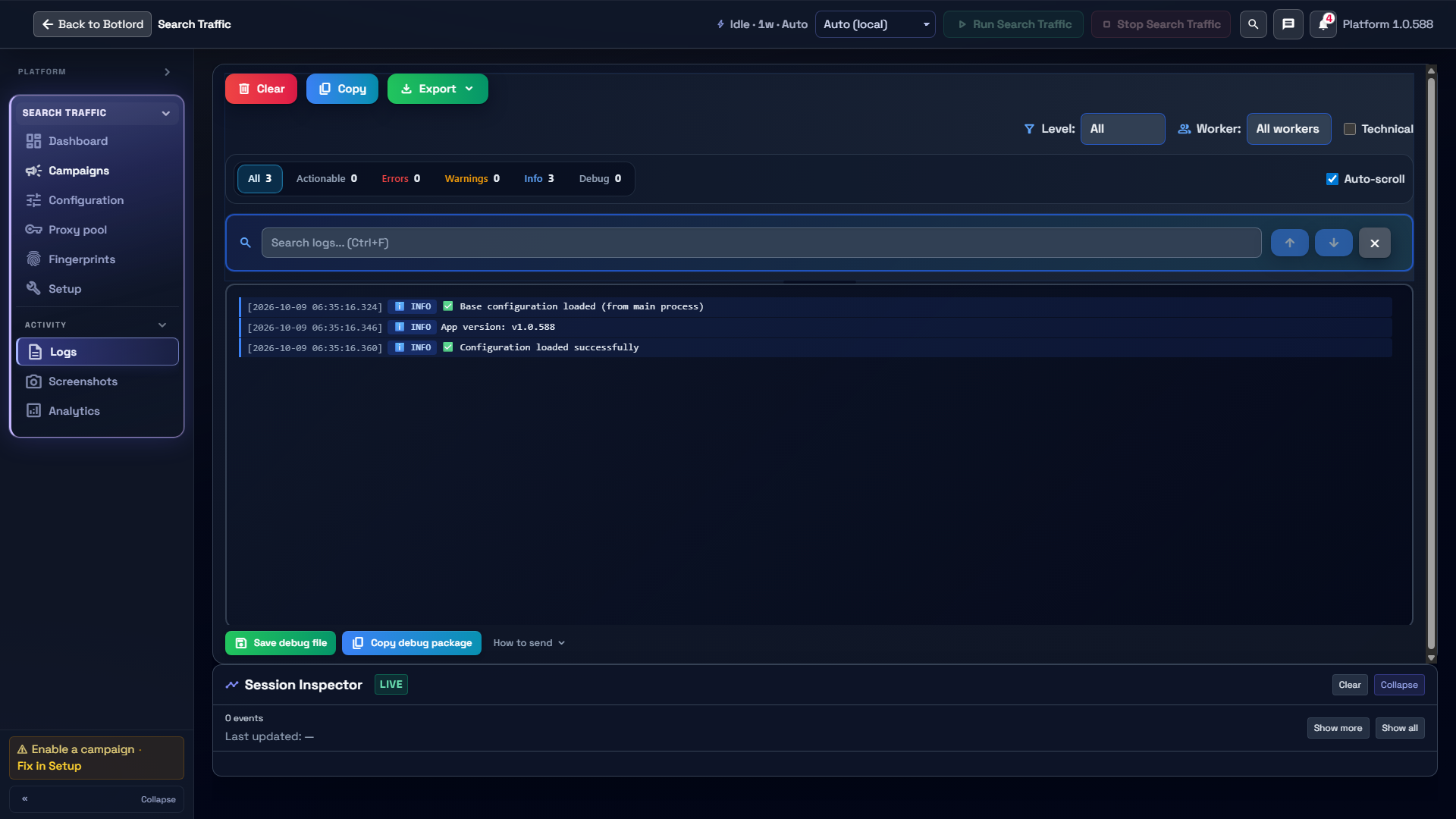
Your bot can record what it's doing so you can troubleshoot campaigns, proxies, and installs. Open the Logs area from the app (sidebar or tab, depending on the product) to watch events in real time.
Session
A session groups related events — like one run of a task or one browser workflow. Each session has an ID so you can tell separate runs apart in the log list.
Status
Each line describes what happened or what's about to happen: starting a browser, applying a proxy, typing a keyword, clicking a result, and so on. Use these messages to see exactly where a run succeeded or stopped.
IP
When enabled, the app can log the outbound IP seen at each important step. That helps verify proxy rotation and geo — but it is not free.
Bandwidth & proxies
Logging IP addresses usually means the app makes an extra request whenever the status changes. That can increase bandwidth on your proxy or home connection. If you don't need step-by-step IPs, turn off verbose / "log all activities" style options in settings to save data and cost.
Debug
Debug mode adds technical detail: extra context, errors, and internal steps. Use it when something fails or when support asks for a trace. Turn it off for normal runs — it produces more noise and can increase log size.
If your product uses a config file, debug may look like:
{
  "debug": true
}
Exact keys depend on your app — check the product's install guide or settings screen.
Web logs
On your TheBotLord dashboard you may see account-level activity (logins, license events, etc.) depending on the product. That view is separate from the desktop app logs above — app logs stay on your machine for detailed run history; web logs are for account and license actions in the browser.
After logs, continue with Getting started for install and license steps.